
Deep Dive into Git File Stages
Moamen Sherif
-September 18, 2025
10 minutes read
Git is a powerful version control system, but many developers—especially beginners—find it confusing at first because it has a unique way of handling changes in files. The core of this system revolves around how files move through three main stages before becoming a permanent part of your project history.
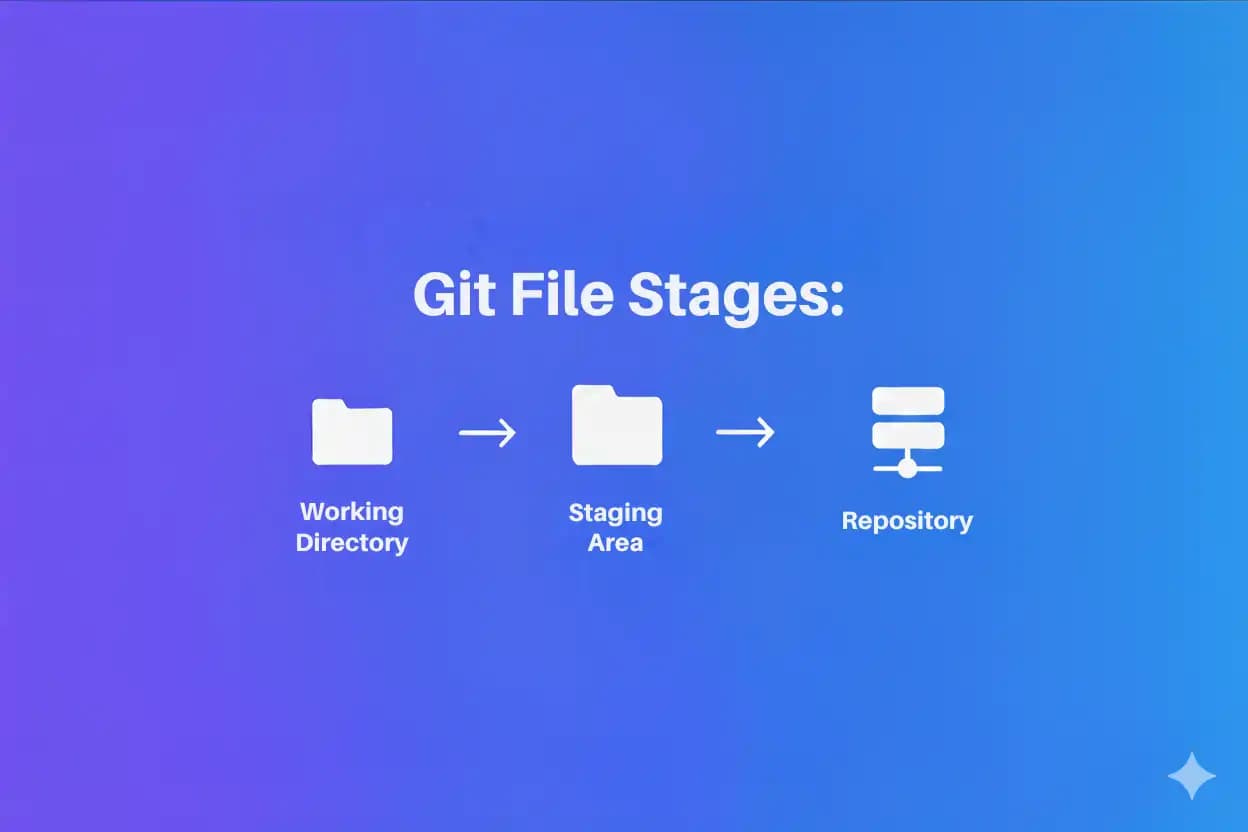
In this article, we will explore these three stages in-depth: Working Directory, Staging Area (Index), and Repository. Understanding these will not only clarify how Git works internally but also help you use Git more effectively.
The Three Essential Stages of Git
1. 📝 Working Directory — The Local Workspace
The Working Directory (also called the working tree) is where all active development happens. It contains the actual files and folders on your local filesystem—the version of the project you are currently editing.
- When you clone a project or checkout a branch, Git populates your Working Directory with the project files from the latest commit in the repository.
- Any edits, additions, or deletions you make to files happen here first.
- At this stage, Git is aware of file existence but does not track changes automatically until you explicitly stage them.
- Files in the Working Directory can be in three states:
- Untracked: New files Git does not know about yet.
- Modified: Existing files that you have changed but not yet staged.
- Deleted: Files you have removed but haven't told Git about.
💡 Example: Suppose you open and modify index.html. At this moment, the file is shown as modified in the Working Directory, but Git will not include this change in the version control system until you stage it.
2. 📂 Staging Area (Index) — The Preparation Zone
The Staging Area, also known as the Index, acts as an intermediate buffer between the Working Directory and the repository. Think of it as a waiting room where you prepare the exact changes you want to include in your next commit.
- Moving changes from the Working Directory to the Staging Area is done using:
git add <filename>
- This command tells Git: “I want to include the current state of this file in the next commit.”
- Only the files or modifications added to the Staging Area will be saved when you create a commit.
- The staging area allows you to structure your commits precisely. For instance, if you modify multiple files but only want to commit some of them now and others later, you can selectively stage changes.
- You can also stage parts of files (called “hunks”) using more advanced commands like
git add -p.
💡 Example: Imagine you edited three files: index.html, style.css, and script.js. You can stage only index.html and style.css with git add index.html style.css. Then, when you commit, only these two will be recorded, while changes in script.js remain unstaged.
3. 🗄️ Repository — The Permanent Record
The Repository is where Git stores the committed snapshots of your project. Each commit is a saved state of the files that were staged.
- Running:
git commit -m "Your detailed commit message"
takes all changes currently in the Staging Area and permanently records them as a commit in the repository.
- Each commit has a unique SHA-1 hash that acts like an ID and also contains metadata such as the author, timestamp, and commit message.
- The repository keeps the full history of all commits, enabling you to revisit or revert to any previous state at any time.
- Commits represent snapshots of your project, but only including files that were staged at the time of the commit.
💡 Example: After staging your prepared changes, using git commit saves those changes, and you now have a checkpoint in your project history. Any files you modified but did not stage will not be part of this commit.
Visualizing the Workflow: How Files Move Between Stages
| Step | Action | Git Command(s) | Result |
|---|---|---|---|
| 1. Modify files | Change code/files in project folder | (no Git command) | Changes exist only in Working Directory |
| 2. Stage changes | Select files to include in next commit | git add <file> | Changes copied to Staging Area |
| 3. Commit changes | Save staged changes permanently | git commit -m "msg" | New commit snapshot recorded in Repository |
Why Git Uses This Three-Stage Process
Understanding this mechanism is key to leveraging Git’s flexibility and power:
- Review Before Commit: Staging allows you to inspect and refine what exactly is included in a commit before making it permanent.
- Selective Commits: You can split your work into multiple commits logically, which helps keep history clean and understandable.
- Accurate Version History: Because Git commits snapshots of staged files only, your project’s history reflects deliberate, well-defined states, not every minor change.
- Safe Experimentation: You can have local edits in your Working Directory without affecting your commit history until ready.
Additional Details and Tips
Using git status to See File States
git status is your best friend for tracking where your files are:
- It shows files in the Working Directory that are modified but not staged.
- It lists files currently staged and ready for commit.
- It tracks new, untracked files waiting to be added.
Running this command before committing helps avoid accidental omissions.
Partial Staging: Commit Exactly What You Want
Git’s staging area allows even more granular control than entire files:
- Use:
git add -p
to interactively select chunks (hunks) of changes in files to stage.
This is useful when you want to separate unrelated changes in a file into different commits.
Removing Changes from the Staging Area
If you accidentally stage something and want to unstage it, use:
git reset HEAD <file>
This moves the file out of the staging area but preserves your changes in the Working Directory.
Summary
Mastering Git’s stages is essential for becoming productive with version control:
- Your Working Directory is where you create and edit files.
- The Staging Area (Index) is where you prepare the files and changes you want to commit.
- The Repository permanently stores commits—the snapshots of your staged changes.
This workflow allows unparalleled flexibility and control, making Git ideal for managing projects of all sizes.
By understanding these internals and practicing Git commands around these concepts, mastering Git becomes much less daunting. Happy coding and committing!